

- Whole org, conversation detail → export Admin → Sessions as JSON.
- One space, conversation detail → export the space’s Sessions tab as JSON.
- Whole org, usage trends → export the Insights page as CSVs.
Exporting sessions across the organization (JSON)
If you’re an organization Owner, the Sessions page (under Admin in the sidebar) lists every session in your org.1
Open Sessions
In the left sidebar, under Admin, select Sessions.
2
Pick a date range
Choose a range of one month or less. The export won’t run without one.
3
Set any filters
The Spaces, Apps, Users, and More filters settings all carry into the export, so the file holds only the sessions you see in the list.
4
Click Export sessions
Select Export sessions at the right end of the toolbar to download the JSON file.
Exporting one space (JSON)
Inside any space, the Sessions tab lists every app session. From the ⋮ overflow menu, choose Export session data (JSON) to download the currently filtered sessions. Any Apps, Users, or Date Range filters and the Needs attention and Builder toggles carry into the export, so you can scope the file to exactly what you’re reviewing. The date range must be one month or less.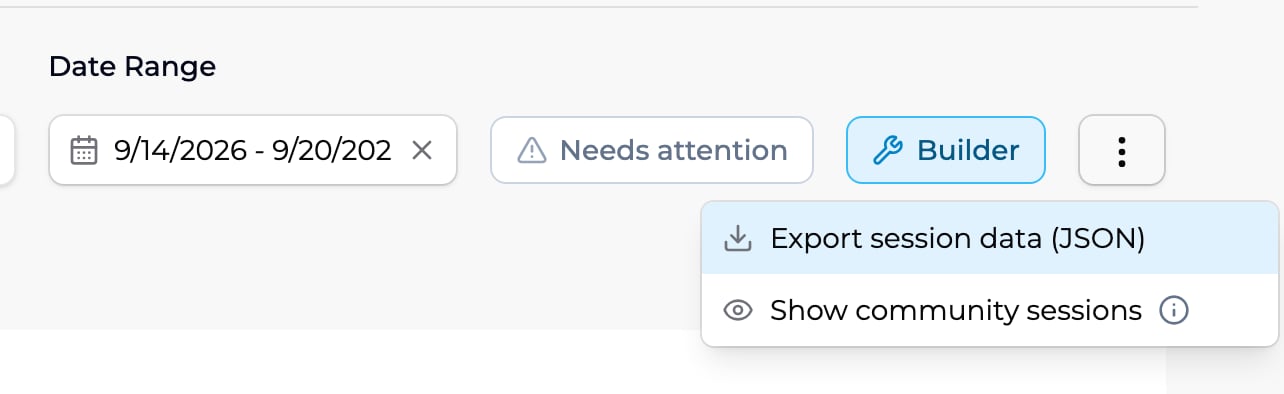
A space's Sessions tab with a date range set and the ⋮ menu open.
What’s in the JSON file
Both Sessions exports produce the same JSON file. It starts with the date range, the apps and users your filters selected, and when the file was made. Then it lists each session with:- the app, the model and its temperature setting
- the person’s id and email (
anonymousfor people who weren’t signed in) - when the session started and ended
- counts of messages, messages from the person, and flagged and moderated messages
- every message, with its text, time, and source (
userorprovider, the AI), any flags or moderation results, any attached file, and any tool the app called
Sample export
Sample export
Exporting the whole organization (CSV)
If you’re an organization Owner, the Insights page (under Admin in the sidebar) gives you an org-wide picture — active apps, active members, sessions, moderated sessions, and breakdowns by app, space, and member. The Export button (top right) downloads all of it as CSVs for the date range and filters you’ve selected.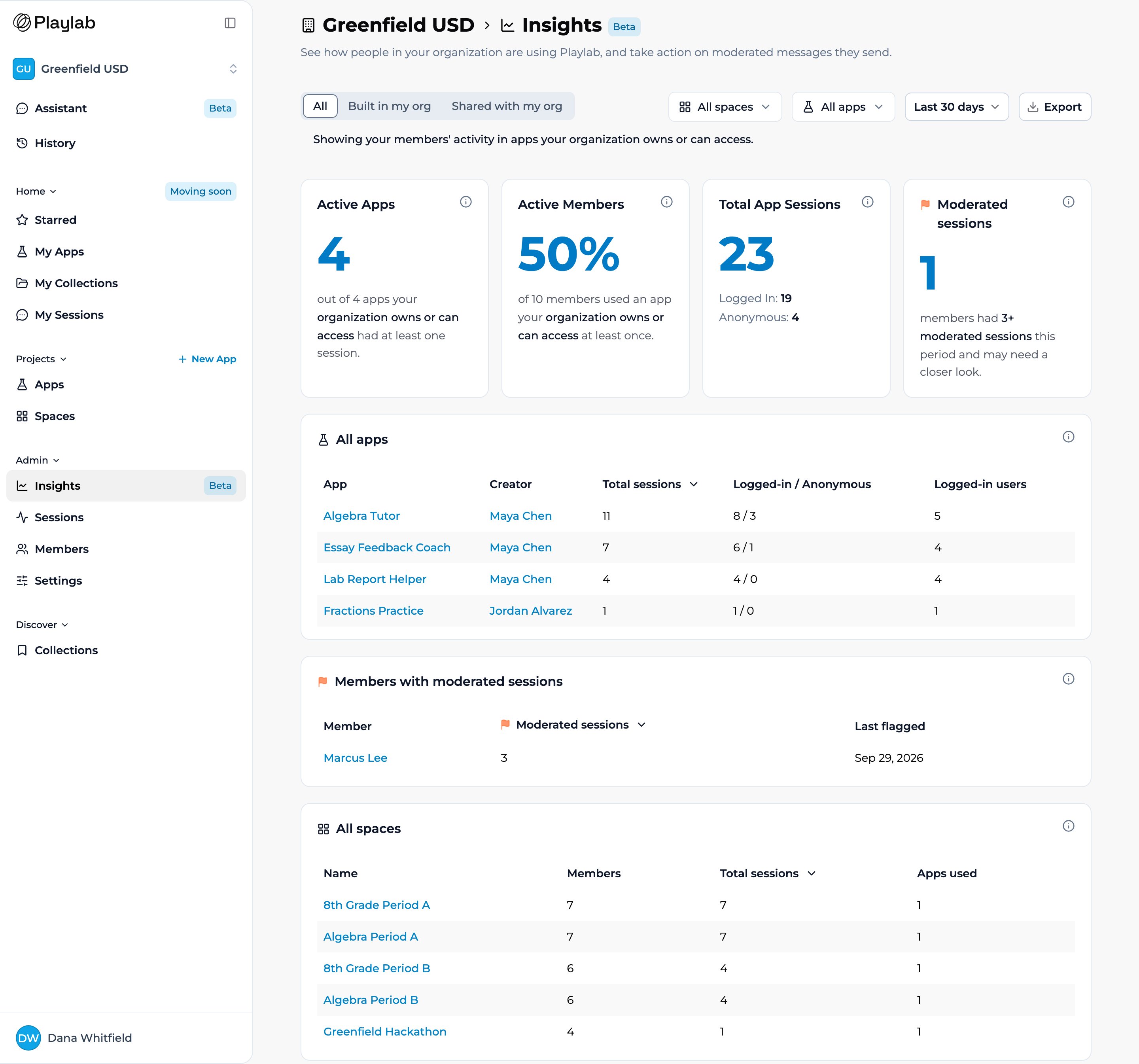
The Organization Insights page. Choose a date range, then click Export (top right) to download the data as CSVs.
1
Open Insights
In the left sidebar, under Admin, select Insights.
2
Pick a date range
Pick Last 7 days, Last 30 days, or Last 90 days from the date dropdown. The export reflects this range and any Spaces or Apps filters.
3
Click Export
Select Export in the top right. Keep the new tab open until the ZIP file downloads.
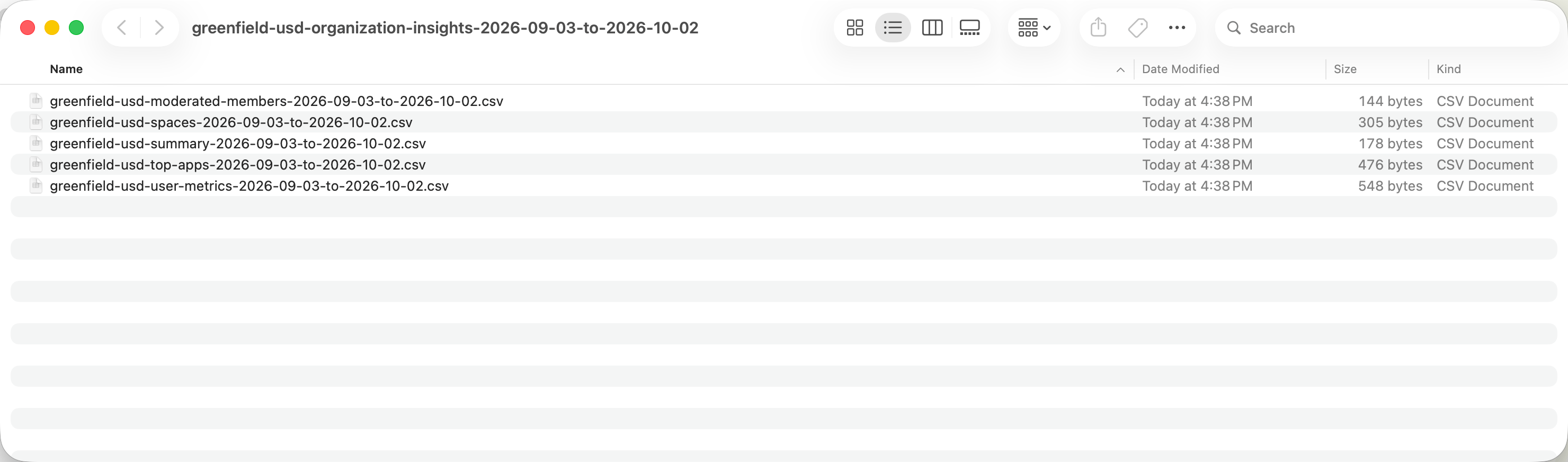
The unzipped export: each CSV is stamped with the date range.
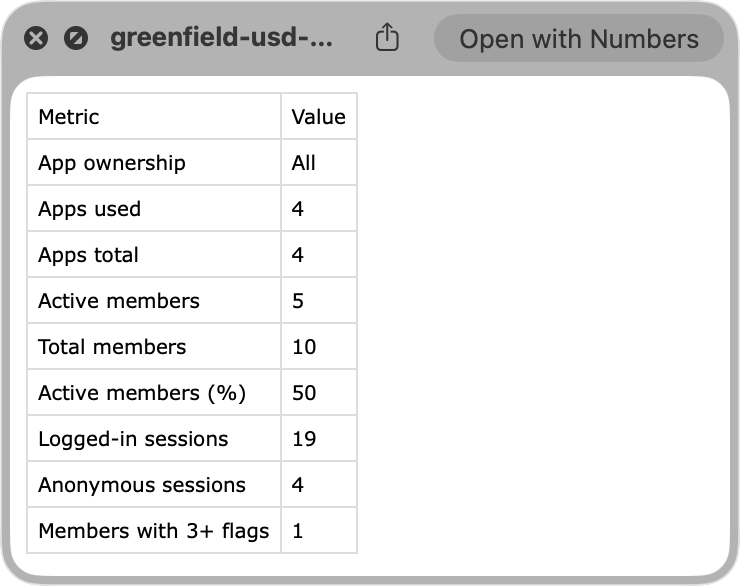
summary.csv opened in a spreadsheet — the org-wide headline numbers.
Key points
- Organization Owners export sessions across the org as JSON from Admin → Sessions → Export sessions
- Space owners and managers export a single space’s sessions as JSON from its Sessions tab
- Organization Owners export org-wide Insights as a ZIP of CSVs from the Insights page
- Every export honors whatever filters and date range you have applied
FAQ
Which export should I use?
Which export should I use?
Use a Sessions export (JSON) when you want detailed session data with full transcripts: from Admin → Sessions for the whole org, or from a space’s Sessions tab for one class. Use the org Insights export (CSV) when you want org-wide usage trends across every space and app.
Do my filters and date range apply to the export?
Do my filters and date range apply to the export?
Yes. The Admin → Sessions export honors the Spaces, Apps, Users, More filters, and date range settings. The space export honors the Apps, Users, and Date Range filters and the Needs attention and Builder toggles on the Sessions tab. The Insights export reflects the date range, the Spaces / Apps filters, and App ownership on the Insights page.
Who can export org-wide Insights?
Who can export org-wide Insights?
Organization Owners only. Space owners and managers export their own space’s sessions instead.
Can I export more than a month of sessions?
Can I export more than a month of sessions?
Not in one file. Each Sessions export covers one month or less, so export longer periods a month at a time.
What formats are the exports?
What formats are the exports?
Sessions export as a JSON file, from Admin → Sessions or a space’s Sessions tab. Org Insights exports as a ZIP of CSV files that open in any spreadsheet app.
Last updated: 10-02-2026 Contact us at [email protected]